Your cart is empty
Already have an account? Log in to check out faster.
Ensuring patients consistently use the right contact lens care products can be challenging, especially when orders are delayed, substituted, or forgotten entirely.
To help specialty eye care practices streamline this process, we have introduced Create a Patient Order, a new tool inside the Tangible Practitioner Account. This feature allows practitioners to recommend and initiate patient orders for Tangible products while keeping checkout, payment, and fulfillment simple.
In this guide, we’ll walk through:
How to create a patient order step by step
Best practices for improving patient compliance
Answers to common practitioner questions
This video walks through the full process, from logging into your Tangible Practitioner Account to sending an order directly to your patient.
Log in at: https://account.tangiblescience.com/
After logging in, you’ll arrive at the Practitioner Tools page, your central hub for managing patient orders, prescriptions, store credit, samples, and more.

From the Practitioner Tools navigation, select Create Patient Orders.
This opens your Patient Orders Dashboard, where you can:
Create new patient orders
View previously sent orders
Track order completion status

Click Create Order in the top-right corner to begin building a new patient order.

Click the "+Add Products" button and select any combination of:
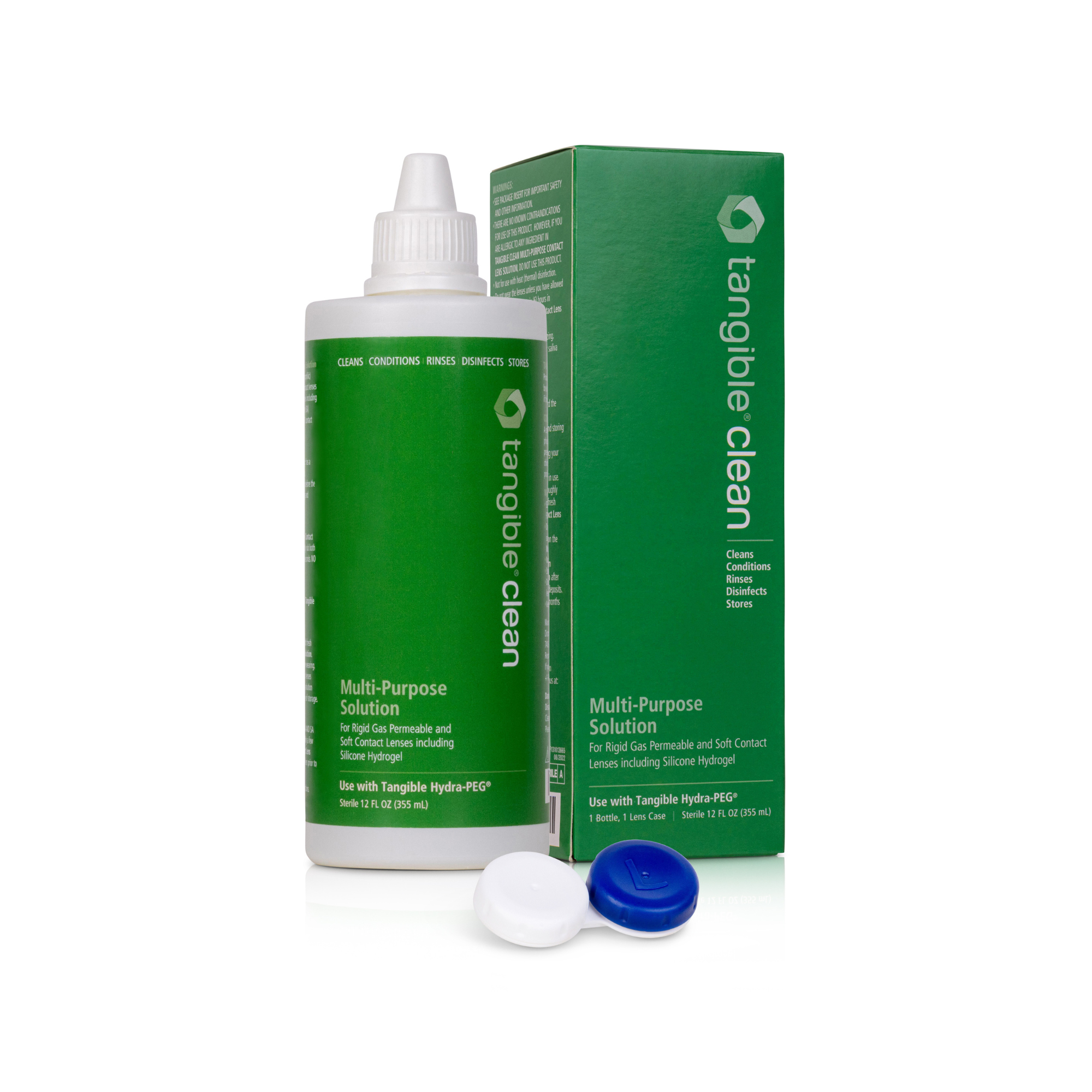
Tangible Clean
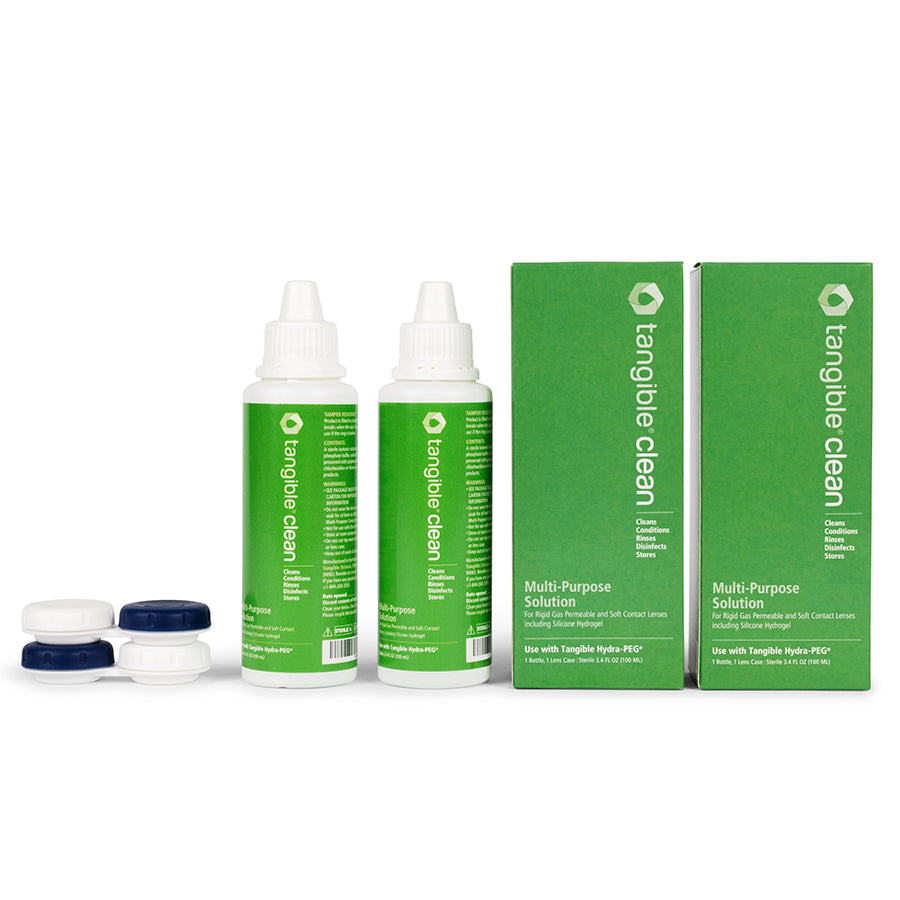
Tangible Clean 3.4oz Travel Pack
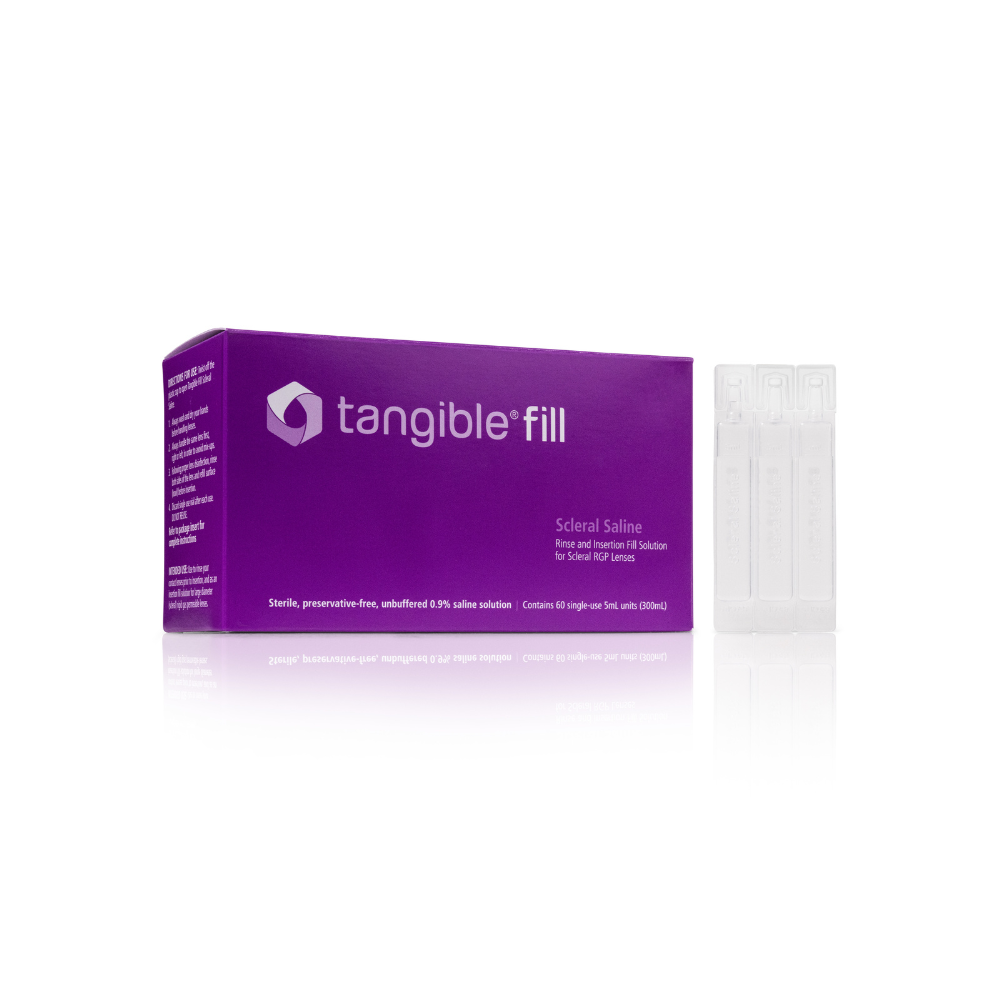
Tangible Fill
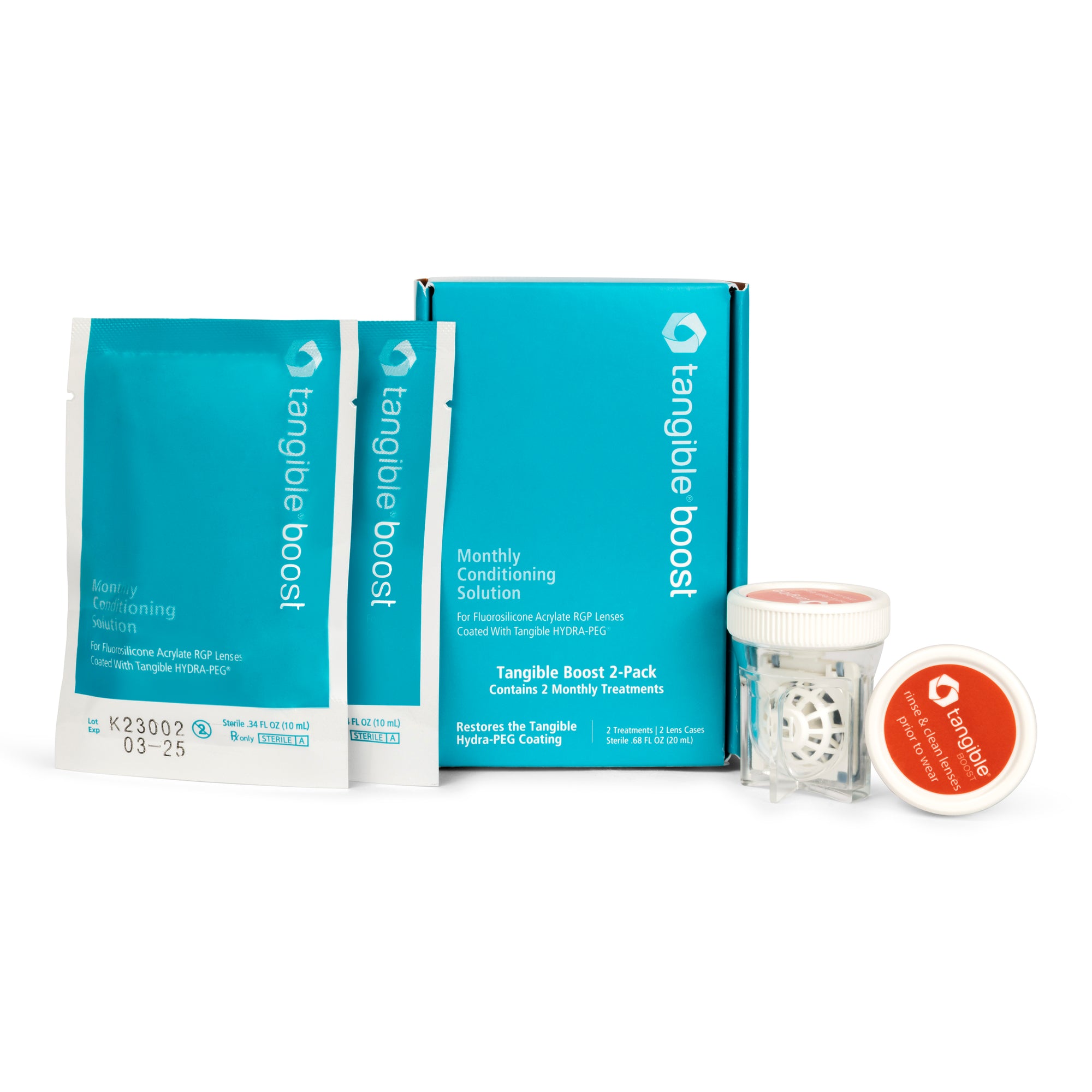
Tangible Boost
This allows you to bundle recommended products and reinforce your preferred contact lens care protocol, helping patients follow exactly what you prescribe.

For each product, choose:
Quantity
One-time purchase or subscription
Subscriptions are ideal for regularly used products and help reduce missed reorders and lapses in care.


Enter your patient’s email address and contact information for the order. If the order includes Tangible Boost, you will also be asked for their date of birth, and to authorize the Tangible Boost Rx before proceeding.
After you have added your patient's information, you can send your patient their order.

After the order is sent to your patient, they will receive an email from info@tangiblescience.com letting them know about your order recommendation, and a link to complete their checkout.


After the patient reaches their checkout screen, they can:
Review the products you recommended
Completes checkout on tangiblescience.com
After the order is completed, the patient will receive an order confirmation to their email, and tracking information once their order ships. The order status is visible at all times in your Patient Orders dashboard so you can track if orders are completed or not.
Using Create a Patient Order helps practices:
Eliminate in-office payment handling
Reduce product substitution and confusion
Improve patient compliance with care protocols
Deliver products directly to patients
Earn 10% store credit on every completed order
Practices with the highest completion rates often:
Bundle complementary products (e.g., Tangible Clean + Tangible Boost + Tangible Fill)
Walk patients through the order process during the visit
Introduce patient orders as part of lens dispensing, not just follow-up
No. Patients complete checkout themselves on tangiblescience.com from the order link that is emailed directly to them.
Yes. You can recommend one-time purchases or subscriptions when building the order. Subscriptions give patients additional discounts on the order so they save more, and stay compliant with your recommended care regimen for longer.
Currently:
Tangible Clean
Tangible Fill
Tangible Boost
Your practice earns 10% store credit on every completed patient order. Store credit can be tracked and applied during future purchases.
Yes. Order status is visible in your Patient Orders dashboard.
Create a Patient Order is now available in your Tangible Practitioner Account.
👉 Log in to create a patient order:
https://account.tangiblescience.com/
We’re continuing to build tools that help specialty practices support patients more effectively. If you have feedback or ideas for future features, we’d love to hear from you.